How to Replace Objects in Videos with AI for Natural-Looking Edits
Sometimes a video is almost perfect, except for one object that no longer fits. Maybe a product package is outdated, a prop distracts from the subject, or a brand asset needs to change for a new campaign. AI object replacement gives you a faster way to fix that without reshooting the whole clip.
This article explains how to replace objects in videos with AI, what makes the edit look seamless, and how an AI video object replacer can help creators and marketers update footage with less manual work.
What Is AI Video Object Replacement?
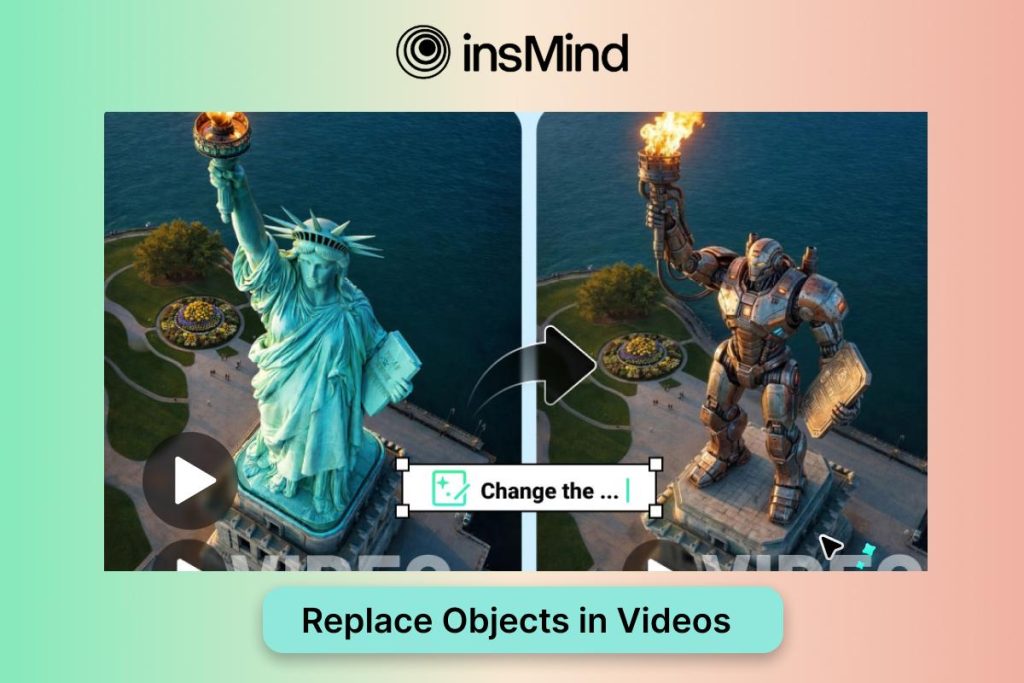
AI video object replacement is a video editing process that identifies an object in a clip and swaps it with a new visual element. The tool analyzes the surrounding scene so the replacement can fit the frame, movement, and context more naturally.
It is useful for product updates, ad localization, creative experiments, and content cleanup. Instead of discarding a strong video because one detail is wrong, you can keep the original scene and update the part that matters.
Why AI Video Object Replacement Matters
Video campaigns change quickly. A product launch may need a new package shot, a seasonal promotion may need a different prop, or a regional campaign may require localized visuals. AI replacement helps teams respond faster while preserving the production value of existing footage.
For more general editing tasks, an AI video editor can support the full workflow, from object changes to broader video adjustments.
The steps below keep the original structure of the workflow: upload the video, describe the replacement, generate a preview, and download the result once it looks natural.
Step 1: Upload the video you want to edit to the insMind AI object replacer
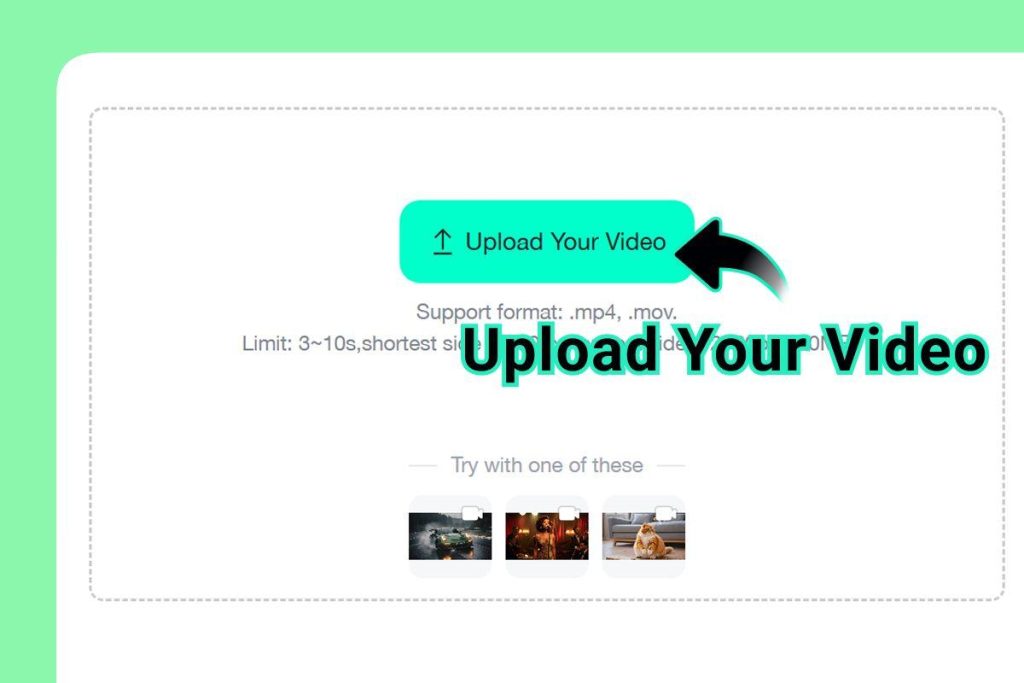
Upload the clip you want to edit. For better results, choose footage where the object is visible, reasonably sharp, and not hidden by heavy motion blur.
Step 2: Describe the object you want to replace and what it should become in the prompt box
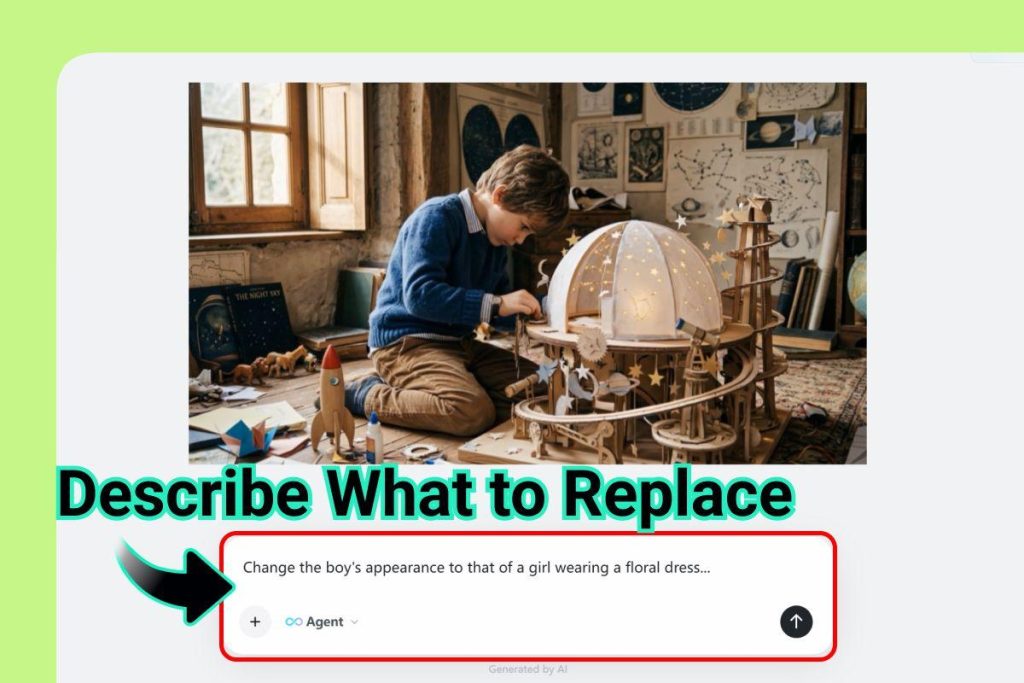
Describe both the current object and the replacement. Include details such as color, size, material, style, and where the new object should appear in the frame.
Step 3: Generate the edited video and preview the AI object replacement result
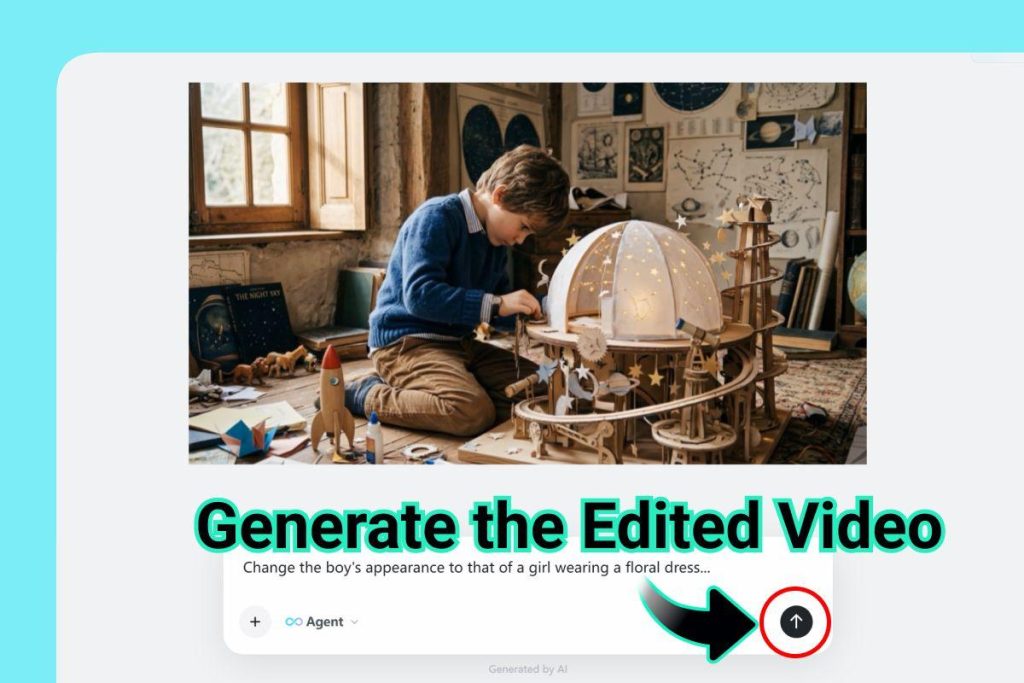
Generate the edit and preview the result. Pay attention to edges, shadows, reflections, and whether the replacement feels connected to the scene.
Step 4: Download the finished video once the replacement looks natural
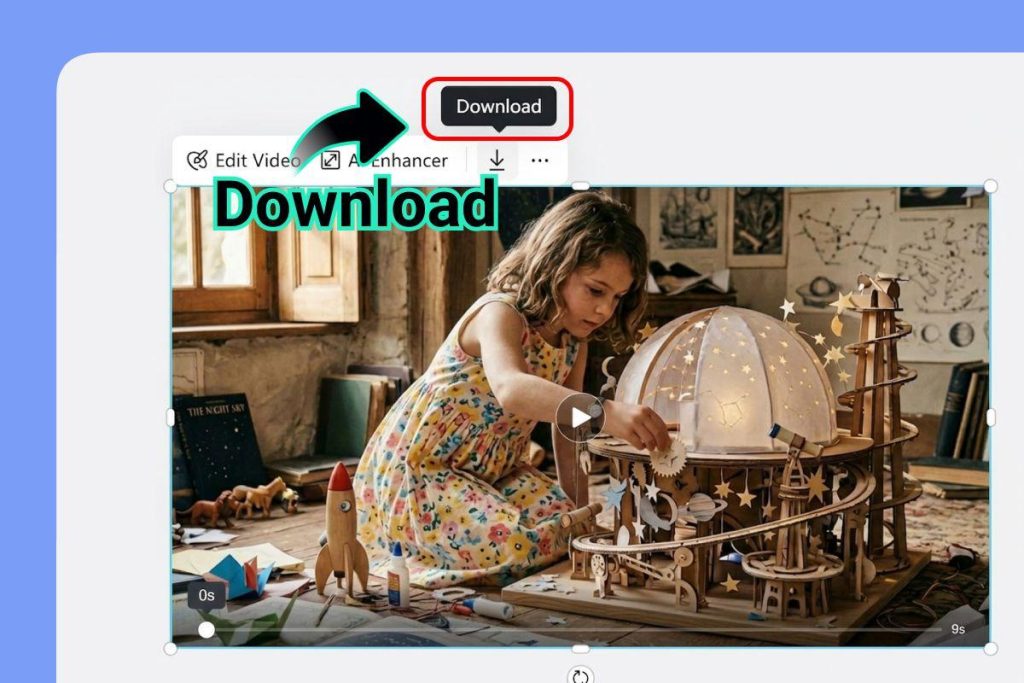
Once the replacement looks clean, download the final video and use it in ads, product content, social posts, or presentations.
Tips for More Seamless Results
- Use clear footage with stable framing
- Make prompts specific instead of vague
- Match the replacement object’s scale and lighting
- Preview movement across the entire clip
- Refine the prompt when the first result feels off
If your project needs a completely new video variation instead of a single object change, an AI video generator can help you explore fresh creative options.
Common Mistakes to Avoid
The most common mistake is under-describing the replacement. A prompt like replace this object does not give the AI enough context. It is better to explain what the object is, what it should become, and how it should fit the scene.
Another mistake is ignoring related visual cues. Shadows, reflections, and perspective can make or break the realism of the edit. For still-image workflows with a similar concept, an AI replace tool can be useful for product or photo-based creative testing.
Frequently Asked Questions
Can AI replace any object in a video?
AI can replace many objects, but results depend on the clarity of the footage, object movement, and scene complexity.
Do I need professional editing skills?
No. Prompt-based tools make the process easier, although careful previewing still improves the final result.
Can I replace more than one object?
Yes, depending on the tool and clip complexity. For best quality, review each replacement carefully before exporting.
Final Thoughts
AI video object replacement is a practical way to update content, fix distracting details, and create new campaign variations from existing footage. With insMind, the process stays approachable while still giving you room to refine the final look.
I am Erika Balla, a technology journalist and content specialist with over 5 years of experience covering advancements in AI, software development, and digital innovation. With a foundation in graphic design and a strong focus on research-driven writing, I create accurate, accessible, and engaging articles that break down complex technical concepts and highlight their real-world impact.
