Building a secure auth code flow setup using AgentCore Gateway with MCP clients | Amazon Web Services
In modern development workflows, developers increasingly rely on agentic coding assistants such as Kiro Integrated Development Environment (IDE) to interact with remote tools and services. However, organizations require robust authentication mechanisms to provide secure, identity-verified access between these agentic coding assistants and enterprise Model Context Protocol (MCP) servers.
Amazon Bedrock AgentCore is a fully managed service that helps you deploy, manage, and scale AI agents in production. One of its key components, the AgentCore Gateway, provides a centralized entry point for routing and securing agent-to-tool communications. When an AI assistant makes a request to an MCP server through the Gateway, that request must be verified before it’s processed. This is known as inbound authentication. Only authorized users and agents can access the tools and services exposed by the MCP server. Organizations typically manage user identities through an identity provider (IdP), such as Okta, Microsoft Entra ID, or Amazon Cognito, which authenticates users and issues security tokens that verify who they are.
This post demonstrates how to implement Open Authorization (OAuth) Code flow as an inbound authorization mechanism for MCP servers hosted on Amazon Bedrock AgentCore Gateway. By the end of this guide, you will have a production-ready setup where each AI assistant request is authenticated with a valid user identity token issued from your organization’s identity provider.
What you will learn
- How auth code flow works with AgentCore Gateway as an MCP resource server.
- Step-by-step configuration of your organization’s identity provider.
- AgentCore Gateway inbound authentication setup.
- Integration with Kiro IDE clients.
Solution overview
In an inbound authorization code flow OAuth setup, the AgentCore Gateway acts as an MCP resource server that requires a valid identity token before allowing AI clients to access any tools.
The following diagram shows the end-to-end architecture for the authorization code flow with AgentCore Gateway, including the identity provider, AI client, and MCP server interactions.
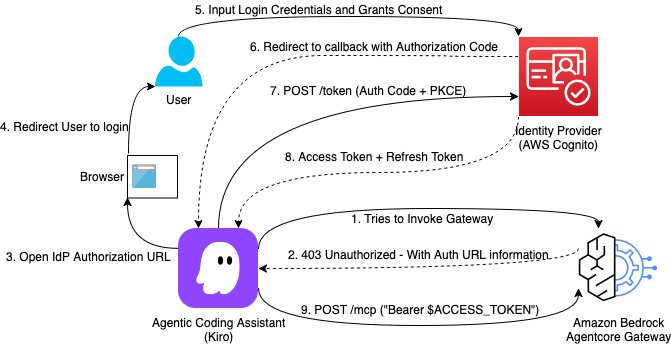
Figure 1: Authorization code flow architecture diagram.
Key components
The solution involves the following components working together to complete the authentication flow:
- Identity provider (IdP): Manages user authentication and issues tokens. The preceding diagram references Amazon Cognito, but it can be your organization’s IdP.
- User: The end user who authenticates with the IdP and whose identity is verified for each request.
- Amazon Bedrock AgentCore Gateway: Acts as the OAuth resource server, validating tokens and proxying requests to MCP servers.
- Agentic coding assistant: Kiro IDE, which acts as the OAuth client and manages the authentication flow.
- MCP server: Your backend tools and services that the AI assistant needs to access.
- MCP OAuth proxy (optional): Helps bridge the gap of spec standardization between agentic coding assistants, IdPs, and MCP servers. An MCP OAuth proxy brings standardization that supports the authorization code flow.
The inbound authorization code flow
This flow makes sure that every request that the AI assistant sends to the MCP server is authenticated with a valid identity token belonging to the user.
- MCP client connection – The agentic coding assistant (for example, Kiro IDE) initiates a connection to the AgentCore Gateway’s MCP endpoint.
- Authentication challenge – The Gateway detects that the request lacks a valid token and responds with an HTTP 401, including a
www-authenticateheader pointing to the Gateway’s OAuth Protected Resource Metadata endpoint (.well-known/oauth-protected-resource). This follows the MCP specification’s Protected Resource Metadata (PRM) pattern. - Discovery – The MCP client fetches the Protected Resource Metadata from the Gateway, which returns the IdP’s authorization server discovery URL (for example,
https://{yourIdPDomain}/oauth2/default/.well-known/openid-configuration). - User redirection – The MCP client opens the user’s system browser and redirects to the IdP’s authorization endpoint with a PKCE challenge, requesting the configured scopes (for example,
openid profile email offline_access). - User authentication and consent – The user enters their credentials on the IdP login page. The IdP verifies the user’s identity and prompts for consent to authorize the application.
- Authorization code grant – After approval, the IdP redirects the user’s browser to the client’s local callback URL (managed by the client’s local listener) with an authorization code.
- Token exchange request – The MCP client sends the authorization code along with the PKCE code verifier to the IdP’s token endpoint.
- Token issuance – The IdP validates the authorization code and PKCE verifier, then returns an access token (and optionally a refresh token) to the MCP client.
- Authenticated MCP request and validation – The MCP client includes the access token in the
Authorizationheader for all subsequent requests. The Gateway validates the token’s signature, expiration, issuer, and audience or custom claims, then proxies the request to the target MCP server for execution.
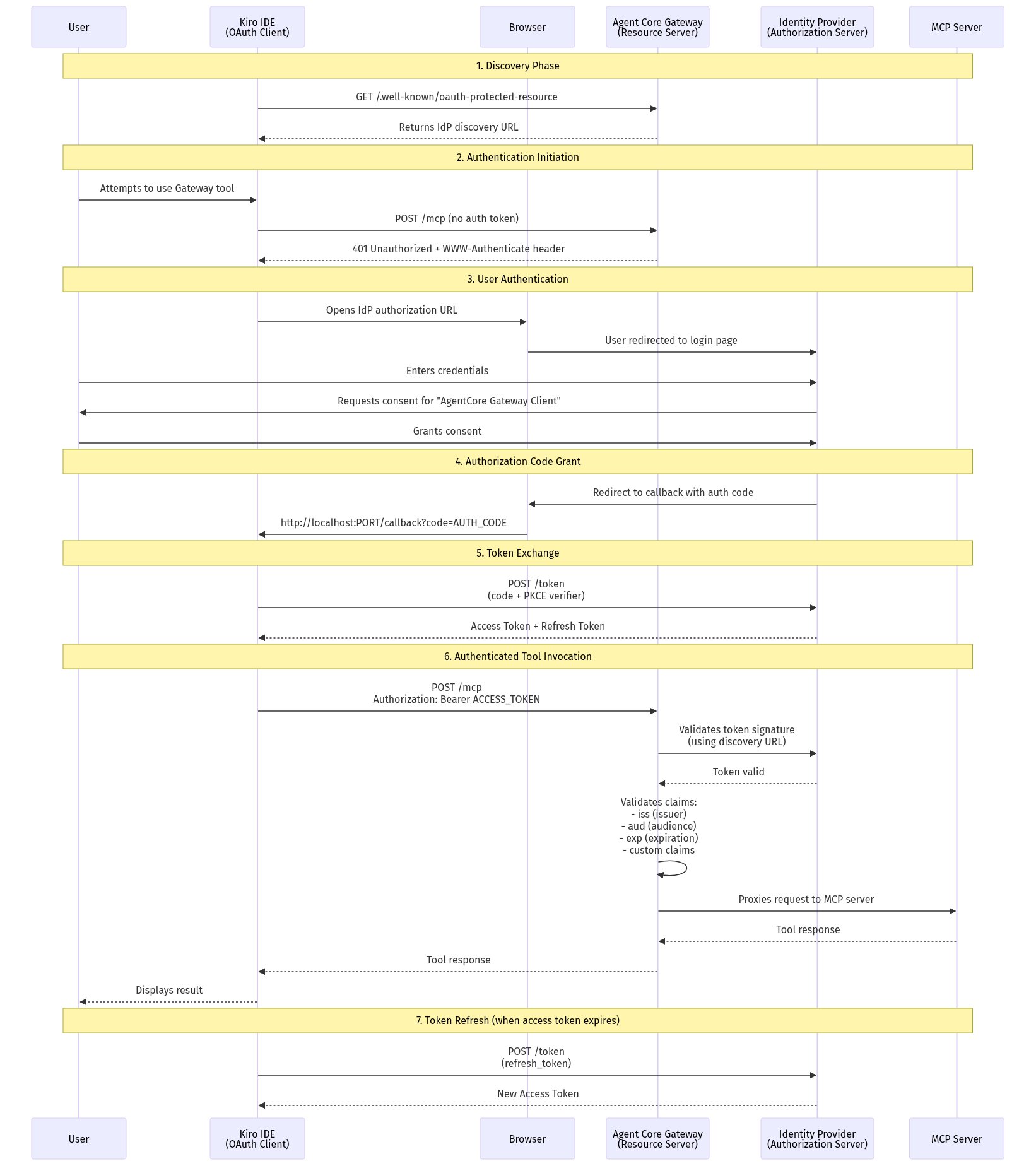
Figure 2: Authorization code flow request sequence.
Configuration overview
The following table summarizes the required configuration for each component in the authorization code flow setup. Detailed step-by-step instructions follow in the Technical implementation section.
| Component | Required configuration | |
| 1 | Identity provider | Create an OpenID Connect (OIDC) web application with Authorization Code and Refresh Token grants enabled. |
| 2 | AgentCore Gateway | Set inbound authorization to JWT. Configure the discovery URL to your IdP’s issuer (for example, https://{yourIdPDomain}/oauth2/default/.well-known/openid-configuration). |
| 3 | Kiro IDE | Add the Gateway URL in Settings > Connectors (or through the CLI). The client automatically triggers the OAuth flow if the Gateway returns a 401 Unauthorized with the correct auth headers. |
Technical implementation
With the architecture and flow established, configure each component. This section provides step-by-step instructions for the three components referenced in the configuration overview table:
- Identity provider: Register an OIDC application and configure grant types, redirect URIs, and token settings.
- AgentCore Gateway: Enable JWT-based inbound authorization and point it to your IdP’s discovery endpoint.
- MCP client (Kiro IDE): Connect the client to the Gateway URL and verify the end-to-end OAuth flow.
Prerequisites
You must have the following prerequisites in place to follow along.
- An AWS account with AgentCore Gateway deployed.
- An identity provider (IdP) with permissions to configure an app (for example, Amazon Cognito, Okta, Auth0, or other enterprise identity providers).
- MCP OAuth proxy.
- Kiro IDE installed locally.
- Basic understanding of OAuth 2.0 flows.
Step 1: Configure the organization’s identity provider
In this step, you register an OIDC application with your organization’s identity provider and configure it to support the authorization code flow with PKCE.
1.1 Create an OIDC application
Sign in to your IdP admin console and create a new OIDC/OAuth 2.0 application integration:
- Sign-in method: OIDC.
- Application type: Web application.
- Name: AgentCore Gateway client (or your preferred name).
1.2 Configure grant types
Enable the following grant types:
- Authorization Code.
- Refresh Token.
1.3 Set redirect URIs
Add the callback URL that your AI client will use:
http://localhost:PORT/callbackReplace PORT with the port that your client uses.
1.4 Configure token settings
In your IdP application settings, do the following.
Token lifetimes:
- Access token lifetime: 1 hour (recommended).
- Refresh token lifetime: 90 days (adjust based on your security requirements).
- ID token lifetime: 1 hour.
1.5 Note your configuration
Save the following values. You will need them for Gateway configuration:
- Client ID: Found in the application’s General tab (needed for Kiro IDE client configuration).
- Issuer URL: Your IdP’s issuer URL (for example,
https://{yourIdPDomain}/oauth2/default). - Discovery URL: Your IdP’s OpenID Connect discovery endpoint (for example,
https://{yourIdPDomain}/oauth2/default/.well-known/openid-configuration).
For this configuration:
- No client secret required – This flow uses PKCE (Proof Key for Code Exchange), which is designed for public clients like desktop applications. The client secret is not needed or used by Kiro IDE.
- No IdP endpoints in client config – Kiro IDE discovers the OAuth endpoints automatically from the Gateway, which returns the discovery URL. You don’t configure IdP URLs directly in the client.
Step 2: Configure AgentCore Gateway
With your identity provider configured, the next step is to connect AgentCore Gateway to your IdP so it can validate incoming tokens.
2.1 Set inbound authorization mode
Configure your Gateway to use JWT-based authentication with your IdP’s discovery endpoint:
# Example Gateway configuration (adjust based on your deployment method)
aws agentcore update-gateway \
  --gateway-id <your-gateway-id> \
  --inbound-auth-type JWT \
  --jwt-discovery-url "https://{yourIdPDomain}/oauth2/default/.well-known/openid-configuration" \
  --region <your-region>
2.2 Custom claim validation
AgentCore Gateway validates JWT tokens based on standard OAuth 2.0 claims and supports custom claim validation to accommodate different IdP implementations. The Gateway expects tokens to contain:
- Standard claims:
iss(issuer),aud(audience),exp(expiration),iat(issued at),client_id(client identity), andscopes(allowed scopes). - Client identification: The Gateway can validate client identity through various claims depending on your IdP.
Other IdPs might use different claim names for client identification, scopes, and so on (for example, cid, azp, scp). You can configure custom claim validation in your Gateway to match your IdP’s token structure:
- Custom claim:
<claim-name> EQUALS <expected-value>(see AgentCore Gateway: Set up a JWT). - Example:
cid EQUALS 0oaz7147z771FZmdQ697(for IdPs that usecid, like Okta). - This validates that the token was issued for your specific application.
Note: The Gateway’s Allowed audience field can be kept empty when using custom claim validation. The custom claim check provides the necessary client identity verification.
2.3 Understand Gateway token validation
Now that the Gateway is configured with your IdP’s discovery URL and claim rules, look at how it validates incoming tokens at runtime.
AgentCore Gateway is designed to be agnostic to how the OAuth token was obtained by the user. The Gateway doesn’t distinguish between tokens acquired through the following:
- Client credentials flow, where the application authenticates directly.
- Authorization code flow, where the user explicitly authenticates and grants consent.
The Gateway only requires that the OAuth token presented in the request is valid based on the parameters configured during Gateway setup:
- Token signature: Verified against the public keys from the IdP’s discovery URL.
- Token expiration: Validates the token hasn’t expired.
- Issuer (
issclaim): Matches the expected IdP issuer. - Audience or custom claims: Validates the token was issued for this specific Gateway or application.
- Standard OAuth claims: Checks required claims like
iat,exp, and so on.
Whether users obtain tokens through a client credentials flow, authorization code flow, or other OAuth grant type, the Gateway treats all tokens equally. As long as the token passes the validation checks configured in your Gateway setup, the request is authorized. With this flexibility, you can choose the authentication flow that fits your use case while maintaining consistent security at the Gateway level.
2.4 Verify Gateway configuration
Test that your Gateway endpoint is accessible and requires authentication:
# Test authentication with an actual MCP request (POST without auth token)
curl -i -X POST https://<your-gateway-url>/mcp \
  -H "Content-Type: application/json" \
  -d '{"jsonrpc":"2.0","method":"initialize","params":{},"id":1}'
The following response confirms that authentication is properly configured (a 401 response to unauthenticated MCP requests):
# Expected response showing authentication is required:
HTTP/2 401
www-authenticate: Bearer resource_metadata="https://<your-gateway-url>/.well-known/oauth-protected-resource"
{"jsonrpc":"2.0","id":0,"error":{"code":-32001,"message":"Missing Bearer token"}}
Step 3: MCP OAuth proxy
For the purpose of this post, use mcp-remote to standardize the MCP client interface and complete the authorization code flow.
3.1 Install the mcp-remote package
Use mcp-remote to bridge Kiro IDE’s MCP client with the Gateway’s OAuth-protected endpoint.
Note: mcp-remote is a working proof-of-concept and should be considered experimental.
npm install -g mcp-remoteStep 4: Configure the AI client (Kiro IDE)
With the Gateway and MCP OAuth proxy configured, the final configuration step is connecting your AI client to the Gateway endpoint. Kiro IDE handles the OAuth flow automatically. When it receives a 401 challenge from the Gateway, it initiates the authorization code flow with your IdP.
4.1 Configure Kiro IDE
Add the Gateway to your MCP configuration file at ~/.kiro/settings/mcp.json:
{
  "mcpServers": {
    "gateway-tools": {
      "command": "mcp-remote",
      "args": [
        "https://<your-gateway-url>/mcp",
        "<PORT>",
        "--static-oauth-client-info",
        "{\"client_id\": \"<your-idp-client-id>\", \"redirect_uris\": [\"http://localhost:<PORT>/oauth/callback\"], \"scope\": \"openid profile email offline_access\"}"
      ]
    }
  }
}
Configuration parameters:
command: Usemcp-remoteto connect to remote MCP servers (mcp-remote).- First arg: Your Gateway URL with the
/mcppath. - Second arg: Local port for the OAuth callback (for example,
3334). --static-oauth-client-info: JSON string containing:client_id: Your IdP application client ID.redirect_uris: Must match the port specified in the second arg.scope: Includeopenid profile email offline_accessfor basic auth.
4.2 Test the authentication flow
After adding the Gateway connection, verify that the authentication flow completes successfully:
- Restart your AI client.
- Attempt to use a tool from the Gateway.
- You’re redirected to your browser for IdP login.
- After successful authentication, the tool runs.
Step 5: Verify the end-to-end flow
After all components are configured and the initial authentication succeeds, verify that the full flow works end-to-end, from the AI client sending a tool request, through token validation at the Gateway, to receiving a response from the MCP server.
5.1 Check token validation
Monitor your Gateway logs to confirm token validation:
# Example log entry showing successful validation
[INFO] Token validated successfully for user: user@example.com
[INFO] Executing tool: list_files
For a step-by-step walkthrough using Okta as the IdP, see this GitHub repo.
Clean up
If you followed along with this post and want to undo the resources you created, complete the following steps. They’re presented in reverse order of creation so that dependent resources are removed before the components they rely on.
Revoke OAuth tokens
Before removing any configuration, revoke any active tokens issued during testing. Consult your IdP’s documentation for the exact revocation endpoint URL and supported parameters.
curl -X POST "<your-idp-revocation-endpoint>" \
  -H "Content-Type: application/x-www-form-urlencoded" \
  -d "token=<your-refresh-token>&client_id=<your-client-id>"
Key considerations that vary by IdP:
- Revocation endpoint URL: Check your IdP’s OpenID Connect discovery document (the
revocation_endpointfield). - Token types accepted: Some IdPs only accept refresh tokens. Others accept both access and refresh tokens.
- Client authentication: Public clients typically pass
client_idin the body. Confidential clients might require a Basic Authorization header with encoded credentials. - Cascade behavior: Revoking a refresh token usually invalidates its associated access tokens, but confirm with your IdP.
You can also clear locally cached tokens by removing the mcp-remote auth cache. On macOS or Linux:
Remove the AI client configuration (Kiro IDE)
Remove the Gateway entry from your Kiro IDE MCP configuration at ~/.kiro/settings/mcp.json. Delete the gateway-tools server block you added in Step 4.
Remove the MCP OAuth proxy
Uninstall the mcp-remote package you installed in Step 3:
npm uninstall -g mcp-remoteDelete the AgentCore Gateway configuration
Remove the inbound authentication configuration you set up in Step 2, or delete the Gateway entirely if you created it solely for this walkthrough:
Option A: Remove inbound auth (keep the Gateway)
aws agentcore update-gateway \
  --gateway-id <your-gateway-id> \
  --inbound-auth-type NONE \
  --region <your-region>
Option B: Delete the Gateway
aws agentcore delete-gateway \
  --gateway-id <your-gateway-id> \
  --region <your-region>
Remove the organization’s identity provider configuration
Delete the OIDC application integration you created in Step 1:
- Sign in to your IdP admin console.
- Navigate to Applications > Applications.
- Select the application you created (for example, “AgentCore Gateway client”).
- Deactivate the application first (if required by your IdP), then delete it.
This revokes all client credentials and prevents any future token issuance for this application.
Conclusion
In this post, you learned how to implement secure, identity-verified access to MCP servers hosted on Amazon Bedrock AgentCore Gateway using inbound authorization code flow. With this setup, every AI assistant request is authenticated with a valid user token from your organization’s identity provider.
Key takeaways
- Authorization code flow provides strong authentication by requiring user consent and identity verification.
- AgentCore Gateway acts as an OAuth resource server, validating tokens before allowing requests to invoke targets.
- The flow is transparent to end users. They authenticate once, and tokens are automatically refreshed.
- This architecture scales to support multiple AI clients and identity providers.
Additional resources
- AgentCore Gateway.
- OAuth 2.0 authorization code flow.
- OpenID Connect specification.
- MCP specification.