

Drive real embedded hardware from Claude, AI editors, and any MCP client.
labgrid is the open-source framework embedded teams use to share lab hardware: boards ("places") with remotely switchable power, serial consoles, USB muxes, and flashing tools. labgrid-mcp is a Model Context Protocol server that plugs any labgrid lab into the MCP ecosystem, so agents and dev tools can work with the lab directly:
"Acquire the rk3399 board, flash last night's image, power-cycle it, and tell me whether it reaches a login prompt. Paste the console log if it doesn't."
Not only for chat: any MCP client, scripted or human-driven, gets a policy-gated remote-control surface over labgrid's mature driver ecosystem, with the reservations and ownership arbitration ad-hoc device servers don't have.
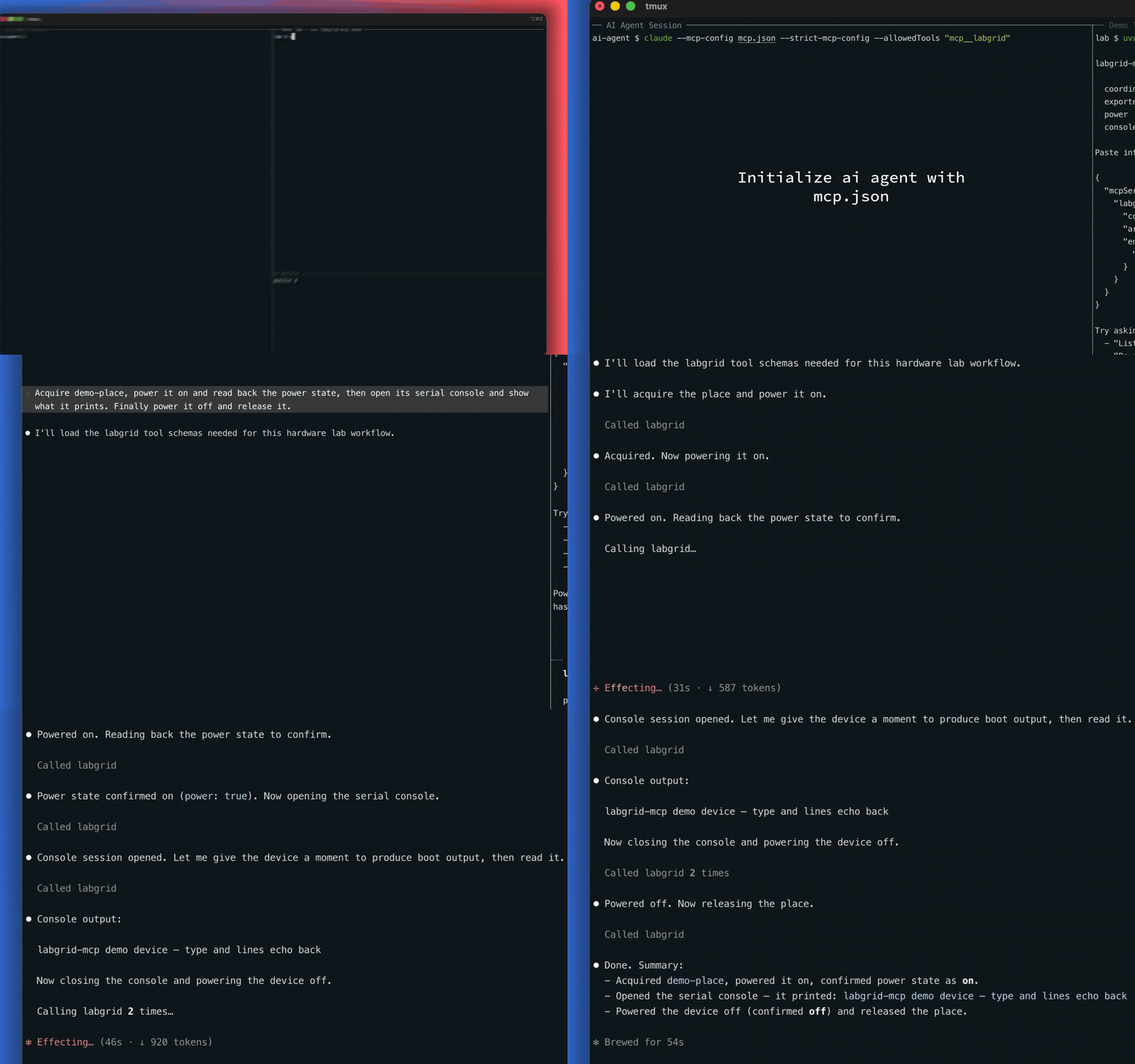
Claude driving the built-in demo lab — no hardware, one command: uvx labgrid-mcp demo
Features
- Full device lifecycle: discover, reserve, acquire, release; keepalive-backed so holds never expire mid-task
- Hardware control: power on/off/cycle, digital I/O, SD/USB mux switching
- Interactive serial console: open, read, send, close; ring-buffered
- SSH to the device: run commands, transfer files, tunnels in both directions
- Flashing (opt-in): DFU, fastboot, bootstrap loaders, image writing, all as background jobs with status/log polling
- Lab housekeeping: tags, aliases, comments, place management, change monitoring
- Safety gating: read-only mode and per-category allowlists; the irreversible families (flash, place deletion) are off by default
47 tools, 5 browseable labgrid:// resources, honest
readOnly/destructive annotations on every tool.
Try it in 5 minutes (no hardware needed)
Requires uv (its bundled uvx does the rest,
including provisioning Python):
This boots a complete fake lab on your machine: a real labgrid
coordinator and exporter, one demo board with a fake power switch and a fake
serial console. It prints a paste-ready .mcp.json snippet. Then ask
your agent:
- "List places, then acquire demo-place"
- "Power demo-place on and read its power state"
- "Open the console on demo-place and read its output"
Ctrl-C tears everything down.
Connect your lab
No separate install step — uvx fetches labgrid-mcp from PyPI the first
time it runs. (Prefer pip? pip install labgrid-mcp, then use
"command": "labgrid-mcp" with no args below.)
You need a running, gRPC-era labgrid coordinator (labgrid ≥ 24; tested against 26.x) reachable from this machine.
1. Register the server with your MCP client. The server definition is the
same everywhere — command uvx, args ["labgrid-mcp"], plus your LG_* env
vars — only the config file location and top-level key differ. Pick your
client:
Claude Code
Save as .mcp.json in your project root:
{
  "mcpServers": {
    "labgrid": {
      "command": "uvx",
      "args": ["labgrid-mcp"],
      "env": { "LG_COORDINATOR": "your-coordinator-host:20408" }
    }
  }
}
or one command: claude mcp add labgrid --env LG_COORDINATOR=your-coordinator-host:20408 -- uvx labgrid-mcp
Claude Desktop
Settings → Developer → Edit Config, then add under mcpServers in
claude_desktop_config.json:
{
  "mcpServers": {
    "labgrid": {
      "command": "uvx",
      "args": ["labgrid-mcp"],
      "env": { "LG_COORDINATOR": "your-coordinator-host:20408" }
    }
  }
}
Cursor
Save as .cursor/mcp.json (project) or ~/.cursor/mcp.json (global):
{
  "mcpServers": {
    "labgrid": {
      "command": "uvx",
      "args": ["labgrid-mcp"],
      "env": { "LG_COORDINATOR": "your-coordinator-host:20408" }
    }
  }
}
VS Code (Copilot)
Save as .vscode/mcp.json — note VS Code uses a servers key:
{
  "servers": {
    "labgrid": {
      "command": "uvx",
      "args": ["labgrid-mcp"],
      "env": { "LG_COORDINATOR": "your-coordinator-host:20408" }
    }
  }
}
Windsurf
Add under mcpServers in ~/.codeium/windsurf/mcp_config.json:
{
  "mcpServers": {
    "labgrid": {
      "command": "uvx",
      "args": ["labgrid-mcp"],
      "env": { "LG_COORDINATOR": "your-coordinator-host:20408" }
    }
  }
}
Any other MCP client / SDK
labgrid-mcp is a standard stdio MCP server: spawn uvx labgrid-mcp (or
labgrid-mcp after pip install labgrid-mcp) with LG_COORDINATOR set in
its environment, and speak MCP over stdin/stdout. Works with any client or
agent SDK that supports stdio servers.
2. Restart the client so it picks up the new server.
3. Confirm it's connected — ask your agent "List the labgrid places"; you should get your lab's boards back. You're ready.
Identity works exactly like labgrid-client: set LG_HOSTNAME /
LG_USERNAME, or omit them to use your real hostname/user. Security is
delegated to the network (VPN / SSH tunnel), same as labgrid-client.
(Running from a clone instead of PyPI? Use "command": "uv",
"args": ["run", "--directory", "/path/to/labgrid-mcp", "labgrid-mcp"].)
Run with Docker
Build and run the server as a container (locked-down hosts, or hosting it inside the lab network)
Build the image from the repo's Dockerfile:
git clone https://github.com/onurcelep/labgrid-mcp && cd labgrid-mcp
docker build -t labgrid-mcp .
Then point your MCP client at it:
{
  "mcpServers": {
    "labgrid": {
      "command": "docker",
      "args": ["run", "-i", "--rm",
               "-e", "LG_COORDINATOR=your-coordinator-host:20408",
               "labgrid-mcp"]
    }
  }
}
A useful pattern for labs: build and run the container on a host inside the lab network while your MCP client runs anywhere, one container per user so identity and ownership stay per-person:
{
  "mcpServers": {
    "labgrid": {
      "command": "ssh",
      "args": ["labhost", "docker", "run", "-i", "--rm",
               "-e", "LG_COORDINATOR=127.0.0.1:20408",
               "-e", "LG_USERNAME=your-name",
               "labgrid-mcp"]
    }
  }
}
Don't share one running server between users: each instance holds a single labgrid identity, so a shared instance would make everyone's acquisitions indistinguishable. One container per user/agent keeps the lab's ownership model intact. (Note: an image you build bundles labgrid, LGPL-2.1-or-later — fine to use anywhere; if you redistribute the image, the LGPL's terms apply to that copy, with labgrid's license texts already inside it.)
Your first session
Just ask in plain language — the agent maps it to the right tools. A typical first workflow:
- "Which places are free right now?"
- "Acquire board-7 for me."
- "Power it on, then open the serial console and show me the boot output."
- "SSH in and run
uname -a."- "Power it off and release the board."
Read-only asks ("list places", "who's holding board-7?") work immediately. Anything that changes hardware state is gated (see below), and the two irreversible families — flashing and place deletion — stay off until you explicitly enable them.
Configuration
| Env var | Default | Effect |
|---|---|---|
LG_COORDINATOR |
127.0.0.1:20408 |
Coordinator address |
LG_HOSTNAME / LG_USERNAME |
real host/user | Identity, as in labgrid-client |
LABGRID_MCP_READONLY |
off | 1 = only read-only tools are registered: the Read group plus wait_for_change and forward_list |
LABGRID_MCP_ALLOW |
unset | Comma list of categories to register; flash and place_delete must be listed explicitly; they're off even by default |
LABGRID_MCP_SSH_KEYFILE |
unset | Private key for the SSH tools; unset, they error clearly at call time |
LABGRID_MCP_ACQUIRE_TIMEOUT |
120 |
Max seconds acquire_place waits for allocation |
Safety in one paragraph: flashing and place deletion can do irreversible
damage, so each needs its own explicit LABGRID_MCP_ALLOW entry. SSH tools
are arbitrary command execution on the acquired board, the same trust class
as a console session; LABGRID_MCP_READONLY=1 drops them along with every
other gated tool (forward_list stays, since it only lists in-memory tunnel
state). And a labgrid caveat worth knowing: the coordinator enforces no
ownership guard on place metadata: this server refuses to edit an acquired
place without force=True, but nothing can protect a place nobody holds
(and an empty tag value in set_place_tags deletes that key, which is
labgrid's own semantics). Details: docs/DESIGN.md §4 and §11.12.
Tools
All 47 tools by group
| Group | Tools |
|---|---|
| Read | coordinator_info, list_places, show_place, who, list_resources, list_reservations |
| Acquisition / reservation | acquire_place, release_place, allow_place, release_from, reserve, cancel_reservation, reservation_wait |
| Drivers | get_power_state, set_power, get_io, set_io, get_sd_mux, set_sd_mux, set_usb_mux |
| Console | console_open, console_read, console_send, console_close |
| SSH / forward | ssh_run, put_file, get_file, forward_open, forward_remote_open, forward_close, forward_list |
| Flash (opt-in) | flash_dfu, flash_fastboot, flash_script, bootstrap, write_image, flash_status, flash_logs |
| Place metadata | add_place, add_place_alias, delete_place_alias, set_place_tags, set_place_comment, add_place_match |
| Place deletion (opt-in) | delete_place, delete_place_match |
| Change monitoring | wait_for_change |
Resources: labgrid://places, labgrid://places/{name},
labgrid://resources, labgrid://reservations, labgrid://sessions.
Per-tool arguments and behaviors are documented in each tool's own
description (visible in your MCP client) and in
docs/DESIGN.md §5/§11.
Limitations
- No video/audio/screen capture or USB instruments (need gstreamer + physical USB; no sane MCP surface)
- No live event stream;
wait_for_changelong-polling instead - Old crossbar coordinators (labgrid < 24) can't connect
- Authentication is network-level (VPN/tunnel), exactly labgrid's own model
- The real flash/mux driver step needs a real board: the job machinery is fully CI-tested against fakes, the silicon-touching step is not
Development
Working on labgrid-mcp itself
The integration suite runs the whole stack, including the demo, against
real coordinator/exporter processes with fake hardware, in CI on every PR,
plus a weekly canary against labgrid master:
git clone <this-repo> labgrid-mcp && cd labgrid-mcp
uv sync
uv run pytest              # unit
uv run pytest -m integration
Architecture, decision log, and a verified reference of labgrid's
internals: docs/DESIGN.md.
License
Apache-2.0. Copyright 2026 Onur Celep.
labgrid itself is LGPL-2.1-or-later and is used as a regular, unmodified dependency.